Spam Checks
SmarterMail comes equipped with a number of antispam features and functions that allow you to be as aggressive as you want when combating spam. Default antispam settings were configured during installation, but these settings can be modified at any time.
Due to the flexible nature of SmarterMail's antispam setup, spam checks can influence the spam decision as much or little as you want. Each spam check has one or more associated weights. When spam protection runs on an email, all enabled spam checks are performed. The total weight of all spam checks is what comprises the final spam weight for the email. A spam probability level (Low, Medium or High) is then assigned to the email using the weights configured by the system administrator on the Filtering card of the Options tab. Based on the email's total spam weight / probability of being spam, the corresponding spam filtering action is taken.
An added benefit to SmarterMail's antispam administration is the ability to combat both inbound and outbound spam messages. Most mail servers only allow administrators to keep spam from entering the mail server. SmarterMail helps protect mail users from inbound spam and also includes the added benefit of keeping mail servers from actually sending spam, thereby helping to protect the mail server from being blacklisted.
The Spam Checks, RBLs and URIBLs tabs can be used to create or modify existing spam checks and RBLs for the system.
- Cyren IP Reputation
- Cyren Premium Antispam
- Declude
- DKIM
- Honey Pot
- Message Sniffer
- Null Sender
- Remote Rspamd
- Remote Spam Assassin
- Reverse DNS
- SpamAssassin-based Pattern Matching
- SpamFoo
- SPF
- Creating Custom Rules
Spam Checks
The Spam Checks tab shows all non-RBL/non-URIBL checks that are performed on a message. These checks can include licensed add-ons such as Message Sniffer, as well as standard checks such as DKIM, SPF and more. Any of these checks can be enabled or disabled for Inbound and/or Outbound SMTP, and each can be edited or removed. To edit a check, simply click it to open its settings. To add a new Spam Check, such as adding in an antispam appliance, click the New button.
SmarterMail includes several spam checks by default. Each check is described in detail, below.
In general, one or more of the following options may be available when creating a custom spam check or modifying an existing one:
- Enable Spool Filtering - When enabled, the weight assigned for the spam check is added to the message and used as part of its overall spam score. SmarterMail then handles the message based on the spam settings configured for a domain.
- Enable Inbound SMTP Blocking - This option is used in conjunction with the SMTP Blocking settings configured in Antispam Options. When enabled, this spam check is counted toward the weight threshold for the blocking of inbound emails. As SMTP blocks are done at the IP/connection level and not based on message content, some spam checks do not offer inbound SMTP blocking. If this option is not available, then that particular spam check does not offer inbound SMTP blocking and must rely on content filtering instead.
- Enable Outbound SMTP Blocking - This option is used in conjunction with the SMTP Blocking settings configured in Antispam Options. When enabled, this spam check is counted toward the weight threshold for the blocking of outbound emails. As SMTP blocks are done at the IP/connection level and not based on message content, some spam checks do not offer outbound SMTP blocking. If this option is not available, then that particular spam check does not offer outbound SMTP blocking and must rely on content filtering instead.
- Weight - The weight range available for the spam check. Each spam check may utilize unique spam weight options.
Cyren IP Reputation
Cyren IP Reputation builds upon what existing RBLs and URIBLs provide by handling the vast gray area of IPs and IP sources that have little or no information. For example, machines that are hijacked and used by botnets that dynamically use, and abuse, the innocuous IP addresses on those hijacked machines. Cyren analyzes hundreds of millions of messages every day, so they are able to classify (and re-classify), in real-time, the reputation of each IP source.
Cyren evaluates the connecting IP address, then returns a numeric "Risk Score" to SmarterMail, along with a "Class Group". The Class Group is a composite value indicating whether an IP is a high-volume, well-established source, a transitory or low-volume source, or a source that has a "fixed decision" applied to it regardless of volume (for example, an IP that Cyren has explicitly whitelisted or blacklisted). SmarterMail combines the Risk Score and Class Group to bucket the IP into one of several categories.
An IP is treated as Good when Cyren's Class Group flags it outright as a trustworthy, high-volume or whitelisted source and its Risk Score is 0. Otherwise, the Risk Score itself determines the bucket: scores below 70 carry effectively no additional risk and are folded into the Low Weight bucket, scores from 70-79 are Low, scores from 80-89 are Medium, and scores of 90 and above are High. In practice, this means the vast majority of legitimate, low-volume senders (a small business mail server, for example) will score in the Good or Low range, while IPs associated with compromised machines or botnet nodes will trend toward Medium or High as Cyren accumulates more evidence of abusive behavior.
Example: A residential broadband IP that suddenly begins relaying outbound SMTP traffic - typical of a home PC that has been recruited into a botnet - has little to no legitimate volume history with Cyren. If Cyren scores that connection at 85, SmarterMail applies the Medium Weight (5, by default) to the message. If Cyren has already seen a sustained pattern of abuse from that same IP across its global network and raises the score to 95, the High Weight (10, by default) is applied instead, making it far more likely the message is flagged or blocked outright.
- Enable Spool Filtering - See above for details.
- Enable Inbound SMTP Blocking - See above for details. Because Cyren IP Reputation evaluates the connecting IP address itself rather than the content of a message, it is only meaningful on inbound connections and does not offer an outbound blocking option.
- Good Weight - Defaults to 0. Based on the Class Group from Cyren, these are IPs that have high volume but low risk or are whitelisted IPs PLUS their overall risk score is 0.
- Low Weight - Defaults to 0. The risk score from Cyren is 79 or below.
- Medium Weight - Defaults to 5. The risk score from Cyren is between 80 and 89.
- High Weight - Defaults to 10. The risk score from Cyren is 90 or above.
Cyren Premium Antispam
The Cyren Premium Antispam add-on is a service that uses Recurrent Pattern Detection (RPD) technology to protect against spam outbreaks in real time as messages are mass-distributed over the internet. Rather than evaluating the content of messages, the Cyren Detection Center analyzes large volumes of internet traffic in real time, recognizing and protecting against new spam outbreaks the moment they emerge. Cyren then categorizes messages as Confirmed, Bulk, Suspect, Unknown, or None.
This add-on can be purchased directly from the SmarterTools website by logging into your account and adding it to any SmarterMail license.
Unlike Cyren IP Reputation, which only makes sense on inbound connections, Cyren Premium Antispam evaluates the message pattern itself, so it can be applied to both inbound and outbound mail flow. This makes it useful not only for keeping outbreak spam out of user mailboxes, but also for catching a compromised mailbox on your own server that has begun blasting out messages matching a known spam pattern - letting you stop the outbound flood before your server's IP addresses end up on public blacklists.
- Enable Spool Filtering - See above for details.
- Enable Inbound SMTP Blocking - See above for details.
- Enable Outbound SMTP Blocking - See above for details. This lets Cyren Premium Antispam help identify and stop compromised accounts or scripts on your own server from distributing recognized spam patterns outbound.
- Confirmed - Defaults to 20. The message is confirmed as being spam.
- Bulk - Defaults to 10. The message is categorized as bulk mail, so it's likely spam.
- Suspect - Defaults to 10. The message is suspicious and likely either bulk email or spam.
- Unknown - Defaults to 0. Cyren is unable to categorize the message as there's not enough data.
- None - Defaults to 0. The message was not scored by Cyren, so it's likely legitimate.
Declude
Declude integration allows you to use Declude products in conjunction with the SmarterMail weighting system. Unlike most of the other checks on this page, SmarterMail does not perform any scanning for Declude itself. Instead, Declude runs as its own separate product against the message while it sits in the spool, writes its own spam determination into the message's header/spool file, and SmarterMail simply reads that value back and folds it into the message's overall spam weight using the weights configured below. In other words, all of the actual detection logic - the rules, signatures, and heuristics that decide whether a message is spam - lives entirely inside the Declude product, not inside SmarterMail. Configuration of Declude itself is done through the Declude product; all you need to do in SmarterMail is enable the spam check so its score is included when calculating the total spam weight of a message. For more information, visit the Mail's Best Friend website as they currently manage and support Declude and the "Declude Reboot" product.
- Enable Spool Filtering - See above for details.
- Enable Outbound SMTP Blocking - See above for details.
- Low Spam Weight - The weight that will be assigned if Declude determines a low probability of spam.
- Medium Spam Weight - The weight that will be assigned if Declude determines a medium probability of spam.
- High Spam Weight - The weight that will be assigned if Declude determines a high probability of spam.
DKIM
DKIM is an email authentication systems designed to verify the DNS domain of an email sender, and the authenticity of a sender as well as the sender's message. DKIM is the combination of Yahoo's Domain Keys and Cicso's Identified Internet Mail (IIM) standard.
When SmarterMail receives a message that carries a DKIM-Signature header, it retrieves the sending domain's public key from DNS and verifies the signature. The result of that verification - Pass, Fail, or None - determines which of the weights below is applied. DKIM has no SMTP blocking option (inbound or outbound) because verification requires the full message body and headers to compute the signature hash; that information isn't available at the SMTP connection stage, so DKIM can only participate in spool/content-based filtering.
- Enable Spool Filtering - See above for details.
- Pass Weight - Defaults to 0. Indicates that the email sender and message integrity were successfully verified (less likely spam). The weight you set may be 0 (for no effect) or a negative number, thereby reducing the spam rating.
- Fail Weight - Defaults to 20. Indicates that the email sender and message integrity verifications failed (most likely spam). Leave this set to a relatively high weight, as the probability that the email was spoofed is very high.
- None Weight - Defaults to 10. Indicates that there was not a valid DomainKey/DKIM signature found to validate the sender and message integrity. Because many legitimate senders still don't sign their outbound mail with DKIM, this is generally kept lower than the Fail Weight so an unsigned - but otherwise legitimate - message isn't penalized as heavily as one that actively fails verification.
- Max message size to verify (MB) (0 = Unlimited) - The maximum inbound message size you want the mail server to verify. Defaults to 100 MB. Because computing and verifying a DKIM signature requires hashing the entire message, very large messages (bulk attachments, for example) can be excluded from verification to avoid unnecessary CPU overhead by lowering this value.
Honey Pot
A "honey pot" spam check derives its name because implementing it can attract spammers — or, more likely, spam bots — like "bees to honey." Basically, a system administrator populates the honey pot spam check with email addresses that are designed to be seen by, or otherwise used by, spammers. These addresses can be commonly used addresses that spammers will automatically target such as admin@your-domain.com, info@your-domain.com, hr@your-domain.com, etc. These types of addresses are commonly targeted, but SHOULD NOT be addresses that are actually used by any user of a given domain. You don't want to add admin@your-domain.com IF that is an actual address used BY a user on that domain. In fact, any addresses added as honey pot addresses DO NOT need to be an actual users. So if you DO use admin@yourdomain.com as a honey pot address, you do NOT need to add that as an actual user TO the domain. In addition, there's no limit to the number of addresses you can add - SmarterMail places no cap on the Honey Pot Addresses list, so it's entirely up to the system administrator how many trap addresses to maintain.
Another common way to instantiate a honey pot spam check is to add a hidden email address to a form used on a website. Spambots can scrape email addresses from these forms, then populate spam lists that are used by, or potentially sold to, spammers. By adding in a hidden (using CSS) honey pot email address to a form, you can essentially trick these bots into scraping that email address, then block any sender who uses the address.
Regardless of HOW you set your trap, honey pots can be a simple, yet effective, way of finding, scoring and then disposing of email spam for your users as well as blocking sending IP addresses.
- Enable Spool Filtering - See above for details.
- Reject found entries at SMTP level - Enabling this will automatically reject the message prior to it
being delivered if the IP of the sending mail server has already been listed.
Note: This rejection will only occur as long as the sending IP is not whitelisted, is not a configured incoming gateway, and has not been IP Bypassed. SmarterMail checks all three exemptions before rejecting a connection at the SMTP level, so trusted infrastructure - such as an internal relay or a partner's gateway server - won't get caught by the honey pot even if it happens to have relayed a message to a trap address in the past.
- Pass Weight - The weight you set may be 0 (for no effect) or a negative number, thereby reducing the spam rating. (Setting negative numbers is not recommended.)
- Listed Weight - This is the weight that is assigned to a message sent from an IP address that was already part of the honey pot.
- Triggered Weight - This is the weight that is assigned to a message that is sent to one of your Honey Pot Addresses. The email address must match one in the list of Honey Pot Addresses for this weight to be added to the message.
- Honey Pot Addresses - These are the actual, full email addresses you're targeting for use by spammers. For example, generic email addresses can be used such as info@example.com or contact@example.com.These should NOT be actual email addresses that are used by anyone on any domain. Ideally, they're addresses that are general enough that spammers would target them with blanket spam attacks, but not addresses that are posted anywhere or used to actually send email. They are explicitly to be used ONLY for trapping potential spammers.
Example: Suppose you add sales@example.com and support@example.com to the Honey Pot Addresses list on a domain where neither address is actually used by a mailbox. A spammer harvesting addresses from old data breaches sends a blast to both. The moment a message hits sales@example.com, that message is scored with the Triggered Weight, and the sending IP is added to the honey pot's internal list. Any subsequent message from that same IP - even one sent to a completely different, legitimate mailbox on the domain - is scored with the Listed Weight (or, if Reject found entries at SMTP level is enabled, rejected outright at connect time), since the sending IP is now known to originate spam.
Message Sniffer
The Message Sniffer add-on is an intelligent antispam scanner that uses advanced pattern recognition and collaborative learning technologies to accurately identify spam, scams, viruses, and other email borne malware before it gets to a user's mailbox.
This add-on can be purchased directly from the SmarterTools website by logging into your account and adding it to any SmarterMail license.
Because Message Sniffer's collaborative pattern database is updated continuously as new spam campaigns are identified across its network of participating servers, it's particularly effective at catching brand-new spam outbreaks that haven't yet been added to traditional signature-based filters. Unlike some of the other add-on checks, Message Sniffer supports outbound SMTP blocking, so it can also be used to stop a compromised account on your own server from sending recognized spam or malware patterns out to the internet.
- Enable Spool Filtering - See above for details.
- Enable Outbound SMTP Blocking - See above for details.
- Confirmed Weight - Defaults to 20. The weight that will be assigned if Message Sniffer determines the message as coming from known spam sources or matching a known spam/malware pattern.
- None Weight - Defaults to 0. The weight that will be assigned if Message Sniffer deems the message is not spam.
Null Sender
A common spam technique is to send messages with missing, or "Null" sender values in the return path. That means that the message appears to come from no one as the return path is blank. This check allows you to assign a spam weight to messages that meet this criteria.
- Enable Spool Filtering - See above for details.
- Enable Inbound SMTP Blocking - See above for details.
- Enable Outbound SMTP Blocking - See above for details.
- Weight - Defaults to 5. The weight assigned to messages that fail this check.
Example: A legitimate transactional system, such as a bounce-handling notification or an automated no-reply receipt, may legitimately use a null return-path and shouldn't be treated as spam on its own. By leaving the Null Sender Weight at its low default of 5, a message like this only tips into the Junk Email folder if it also accumulates weight from one or more additional failed checks (for example, a failed SPF check combined with a null sender), rather than being flagged purely for having no return path.
Remote Rspamd
Rspamd is a fast, free, and open-source spam filtering system that, as a Linux distribution, requires installation on a remote system. However, it ties in nicely with SmarterMail. For information on setting up a remote Rspamd server, see this knowledgebase article: Deploying Rspamd For Use With SmarterMail.
Because Rspamd runs as a separate, remote service rather than an in-process SmarterMail component, SmarterMail communicates with it over the network for every message it evaluates. The settings below control both how that raw Rspamd score gets translated into a SmarterMail spam weight, and how SmarterMail behaves if the remote server becomes slow or unreachable.
- Enable Spool Filtering - See above for details.
- Enable Outbound SMTP Blocking - See above for details.
- Scoring Factor - Instead of attaching weights, like other checks, Rspamd uses a “scoring value” to normalize the value used when weighing results. This normalization takes the raw score returned by Rspamd and multiplies it by a Scoring Factor (that is fully customizable) to come up with a final spam score. For example, if Rspamd returns a raw score of 8.5 for a message and the Scoring Factor is set to 2, the resulting contribution to that message's overall spam weight is 17. Raising the Scoring Factor makes SmarterMail trust Rspamd's opinion more heavily; lowering it (or setting it below 1) tempers Rspamd's influence relative to your other spam checks.
- Client Timeout (seconds) - Defaults to 60. The timeout that SmarterMail will impose on a server if it cannot connect or respond in time.
- Max Attempts per Message - Defaults to 5. The number of times SmarterMail will attempt to acquire an Rspamd score for an email before giving up on that message.
- Failures Before Disable - Defaults to 5. The number of times a remote Rspamd server can fail to respond before it is temporarily disabled, preventing SmarterMail from repeatedly stalling on a server that has gone down.
- Disable Time (minutes) - Defaults to 5. The length of time before the Rspamd server is re-enabled and SmarterMail attempts to use it again after being disabled due to failures.
Remote SpamAssassin
SpamAssassin itself is a powerful, third party open source mail filter used to identify spam that can be easily used alongside SmarterMail. It utilizes a wide array of tools to identify and report spam. By default, SpamAssassin will run on 127.0.0.1:783. For more information, or to download SpamAssassin, visit spamassassin.apache.org.
SmarterMail can use SpamAssassin with its weighting system:
- Enable Spool Filtering - See above for details.
- Enable Outbound SMTP Blocking - See above for details.
- Scoring Factor - Instead of attaching weights, like other checks, Remote SpamAssassin uses a “scoring value” to normalize the value used when weighing results. This normalization takes the raw score and multiplies it by a Scoring Factor (that is fully customizable) to come up with a final spam score. As with Remote Rspamd, a raw SpamAssassin score of, say, 6.0 combined with a Scoring Factor of 1.5 would contribute 9 to the message's overall spam weight.
- Client Timeout (seconds) - Defaults to 60. The timeout that SmarterMail will impose on a server if it cannot connect.
- Max Attempts per Message - Defaults to 5. The number of times SmarterMail will attempt to acquire a SpamAssassin score for an email.
- Failures Before Disable - Defaults to 5. The number of times a remote SpamAssassin server can fail before it is disabled.
- Disable Time (minutes) - Defaults to 5. The length of time before the SpamAssassin server is re-enabled.
- Header Log Level - The amount of information SpamAssassin inserts into the header of the message, ranging from just the numeric score up through the score plus the specific test names and descriptions that fired. See the Header Log Level options described under SpamAssassin-based Pattern Matching below for the same tiered levels of detail this option supports.
Reverse DNS
Reverse DNS checks to make sure that the IP address used to send the email has a friendly name associated with it.
Beyond the basic reverse lookup, SmarterMail can also perform Forward-Confirmed reverse DNS (FCrDNS), sometimes called "full-circle" reverse DNS. This is a stronger form of validation: SmarterMail first performs a reverse (PTR) lookup on the sending IP to get a hostname, then performs a forward (A/AAAA) lookup on that hostname to see if it resolves back to the same IP address. Legitimate mail servers are almost always configured with matching forward and reverse records; spammers and compromised hosts frequently are not. SmarterMail distinguishes between two different ways this forward-confirmation step can fail:
- Enable Spool Filtering - See above for details.
- Enable Inbound SMTP Blocking - See above for details.
- Enable Outbound SMTP Blocking - See above for details.
- Weight - Defaults to 15. If an email sender does not have any reverse DNS (PTR) entry at all, this is the value that will be added to the message's total spam weight.
- Forward Confirm Fail Weight - Defaults to 10. This is applied when the reverse lookup returns a hostname, but that hostname has no forward (A/AAAA) record at all to look up - meaning the forward half of the forward-confirmed check simply cannot be completed.
- Forward Confirm Mismatch Weight - Defaults to 5. This is applied when the reverse lookup returns a hostname, and that hostname does have forward DNS records, but none of the resulting IP addresses match the original sending IP - meaning the forward and reverse records actively disagree with each other, rather than one simply being absent.
Example: A message arrives from 203.0.113.50. SmarterMail's reverse lookup on that IP returns mail.example.com. SmarterMail then looks up mail.example.com's A records. If mail.example.com has no A record published at all, the Forward Confirm Fail Weight (10, by default) applies. If mail.example.com does have an A record, but it points to 203.0.113.99 instead of 203.0.113.50, the Forward Confirm Mismatch Weight (5, by default) applies instead, since the forward and reverse records exist but disagree.
SpamAssassin-Based Pattern Matching
SmarterMail includes a proprietary pattern matching engine built upon the SpamAssassin technology as part of the default installation of the product. It includes a number of spam detection techniques, including DNS-based and fuzzy-checksum-based spam detection, Bayesian filtering and more. Unlike Remote SpamAssassin (described above), this check runs locally as part of SmarterMail itself and requires no separate server or add-on to install.
- Enable Spool Filtering - See above for details.
- Enable Outbound SMTP Blocking - See above for details.
- Scoring Factor - Instead of attaching weights, like other checks, a “scoring value” is used to normalize the value used when weighing results. This normalization takes the raw score and multiplies it by a Scoring Factor (that is fully customizable) to come up with a final spam score.
-
Header Log Level - The amount of information the pattern matching engine
inserts into the header of the message. For example, a line in the header would look like the following:
X-SmarterMail-SpamDetail: 2.0 BASE64_LENGTH_79_INF base64 encoded email part uses line length greater than 79
characters.
- Score only - This only adds the numeric value of the returned check to the header. In the above example, that would be "2.0"
- Score with test name - This adds the numeric value and the test name to the header. In the above example that would be "2.0 BASE64_LENGTH_79_INF"
- Score with test name and description - This adds all of the information returned: score, test name, and test description. In the above example, that would be the entire line: "2.0 BASE64_LENGTH_79_INF base64 encoded email part uses line length greater than 79 characters"
SpamFoo
SpamFoo Antispam is an AI-driven, local antispam engine that doesn't simply look for keywords or patterns. Instead, it analyzes the intent and context of a message, helping identify sophisticated spam, phishing attempts, and unwanted email with remarkable accuracy. As a result, SpamFoo provides unprecedented visibility and transparency into how email is being processed through a comprehensive set of dashboards for users, domain administrators, and system administrators. For the first time, administrators can gain deep insight into filtering decisions, user feedback, trends, and mail flow across their organization.
Because SpamFoo evaluates the full intent and context of a message rather than a single header or connection property, it needs the complete message body available to make its determination. This means it operates during spool/content filtering, after the message has been fully received, rather than at the SMTP connection stage - so unlike checks such as Cyren Premium Antispam or Message Sniffer, SpamFoo does not offer an Inbound or Outbound SMTP Blocking option. Its result is applied only through spool filtering.
- Enable Spool Filtering - See above for details.
- Spam Weight - By default, this is set to 20. Change it to set how you want SpamFoo to score a message it deems as being spam.
- Not Spam Weight - Defaults to 0. Indicates that SpamFoo evaluated the message and determined it is legitimate (not spam). The weight you set may be 0 (for no effect) or a negative number, thereby reducing the overall spam rating for the message.
SPF (Sender Policy Framework)
SPF is a method of verifying that the sender of an email message went through the appropriate email server when sending. Therefore, as it's verifying the sending server, SPF is set up by the sending server's system administrator or the domain owner as a DNS record. (More information can be found at DMARC Analyzer.) As more and more companies add SPF information to their domain DNS records, this check will prevent spoofing at an increasing rate.
Just as with RBL/URIBL lookups, SmarterMail has a built-in 10-second timeout that will prevent excessively long SPF DNS lookups from occurring, which could otherwise stall or impact overall email delivery.
- Enable Spool Filtering - See above for details.
- Enable Inbound SMTP Blocking - See above for details.
- Enable Outbound SMTP Blocking - See above for details.
- Scan From header instead of Return Path - Enabling this means the check will use the From address for the SPF check as opposed to the message's RETURN-PATH, which is where NDRs (bounce messages) are sent. Many times spammers will spoof messages by changing the From address to make it appear like a message is coming from a legitimate person/organization even though the RETURN-PATH may be for the actual source of the message. While it is possible to spoof a message's RETURN-PATH, spoofing the From address is a much more common method used by spammers.
- Pass Weight - Indicates that the email was sent from the server specified by the SPF record (more likely good mail). The weight you set may be 0 (for no effect) or a negative number, thereby reducing the spam rating.
- Fail Weight - Indicates that the email was sent from a server prohibited by the SPF record (highly likely spam). Set this to a relatively high weight, as the probability that the email was spoofed is very high.
- SoftFail Weight - Indicates that the email was sent by a server that is questionable in the SPF record. This should either be set to 0 or a low spam weight.
- Neutral Weight - Indicates that the SPF record makes no statement for or against the server that sent the email. Except in very special circumstances, leave this set to 0.
- PermError Weight - Indicates that there is a syntax error in the SPF record. Since SPF is relatively new, some domains have published improperly formatted SPF records. It is recommended that you leave this at 0 until SPF becomes more widely adopted.
- TempError Weight - Indicates that a temporary DNS error occurred while retrieving or evaluating the sender's SPF record (for example, the authoritative DNS server for the sending domain was unreachable or timed out). Because this reflects a transient DNS problem rather than anything about the sender's legitimacy, this should generally be left at 0 or a very low weight.
- None Weight - Indicates that the domain has no published SPF record. Since SPF is relatively new, many legitimate domains do not have SPF records. It is recommended that you leave this at 0 until SPF becomes more widely adopted.
Example: A domain publishes an SPF record of "v=spf1 ip4:198.51.100.0/24 -all", meaning only servers in that /24 block are authorized to send mail for the domain, and everything else should hard-fail. If a message claiming to be from that domain arrives from an IP outside that range, SmarterMail's SPF check returns Fail and the Fail Weight is applied - appropriately treating the message as highly likely to be spoofed. If the same domain had published no SPF record at all, the check would instead return None, and (at the recommended default of 0) no additional weight would be added, since the absence of an SPF record isn't by itself evidence of spam.
Creating Custom Rules
Custom spam rules can be created based on the header, body text or raw content of a message. For example, BestAZLawFirm.com, which is hosted on a SmarterMail server, constantly receives important emails from the "VeryImportantClientDomain.net" domain, which is hosted on an external server. However, VeryImportantClientDomain.net is constantly getting listed on one or more blacklists because it is hosted on a mail server that isn't using properly vetted and cleansed IP addresses. To bypass any potential negative spam score senders from this domain receive when their messages hit SmarterMail, the SmarterMail system administrator can create a custom spam rule for the sending domain that artificially removes any negative spam score. That way, emails from VeryImportantClientDomain.net don't end up in the Junk Email folders of BestAZLawFirm.com users.
To configure weights for custom rules, click New, then complete the following fields:
- Rule Name - The name of the rule.
- Rule Source - What you want the rule to be based on: a message's header, body text or raw content. When selecting "body text" or "raw content", you'll need to supply additional information that is applied to the Rule Text: whether the Source "contains" the information, whether the wildcard is used for a range of information or whether you want to supply a regular expression. If you select Header you will need to supply header details separately from the Rule Text.
- Rule Text - The text that will be used in conjunction with the Rule Source. For example, if you use create a Rule Source based on Body, then an additional Rule Source for "Contains", Rule Text can include words such as "Cialis", "Viagra", "male enhancement", etc.
- Weight - The amount to add to the email message's spam weight.
- Match Multiple - Enabling this allows the spam weight calculated for the rule to increase based on
multiple instances of the Rule Text that's added. In general, a custom spam check based on any Rule Source will
check for the FIRST instance of a word or phrase that's been added to the Rule Text and apply that weight. It
doesn't matter if all of the words or phrases are found — only the FIRST instance is counted and the weight
applied. When Match Multiple is enabled, the first instance of ALL words or phrases in the Rule Source is
counted and the total score is used.
Note: when using Body as the Rule Source, the spam check looks at both the HTML and plain text versions of a message, primarily because these versions may differ in content. As a result, the total weight may vary.
- Enable Spool Filtering - When enabled, the weight assigned for the spam check is added to the message and used as part of its overall spam score. SmarterMail then handles the message based on the spam settings configured for a domain.
- Enable Outbound SMTP Blocking - See above for details.
Match Multiple Examples
The concept of the Match Multiple settings can get a bit confusing. Below are a couple of examples of how Match Multiple works.
Rule Source: Header
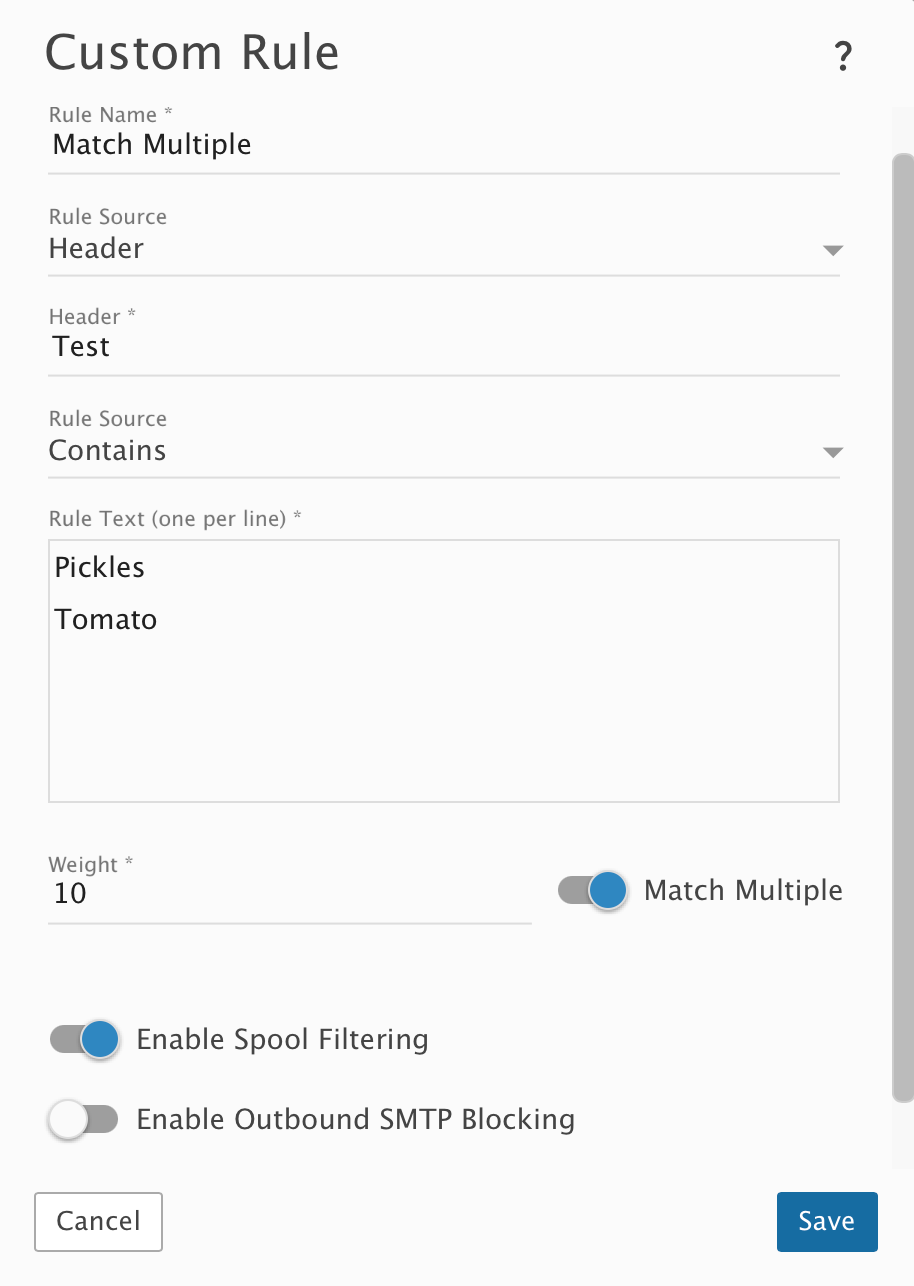
- An incoming email that contains two separate headers of "Test: Pickles" will get a weight of 20 for this spam check. ("Pickles" in the first header will trigger a weight of 10, and "Pickles" in the second header will trigger a weight of 10.)
- An incoming email that contains a single header of "Test: Pickles Pickles" will get a weight of 10 for this spam check. (The first instance of "Pickles" in the header will trigger a weight of 10.)
- An incoming email that contains a header of "Test: Pickles Pickles" and a header of "Test: Tomato" will get a weight of 20 for this spam check. (The first instance of "Pickles" in the first header will trigger a weight of 10, and the instance of "Tomato" in the second header will trigger a weight of 10.)
Rule Source: Body
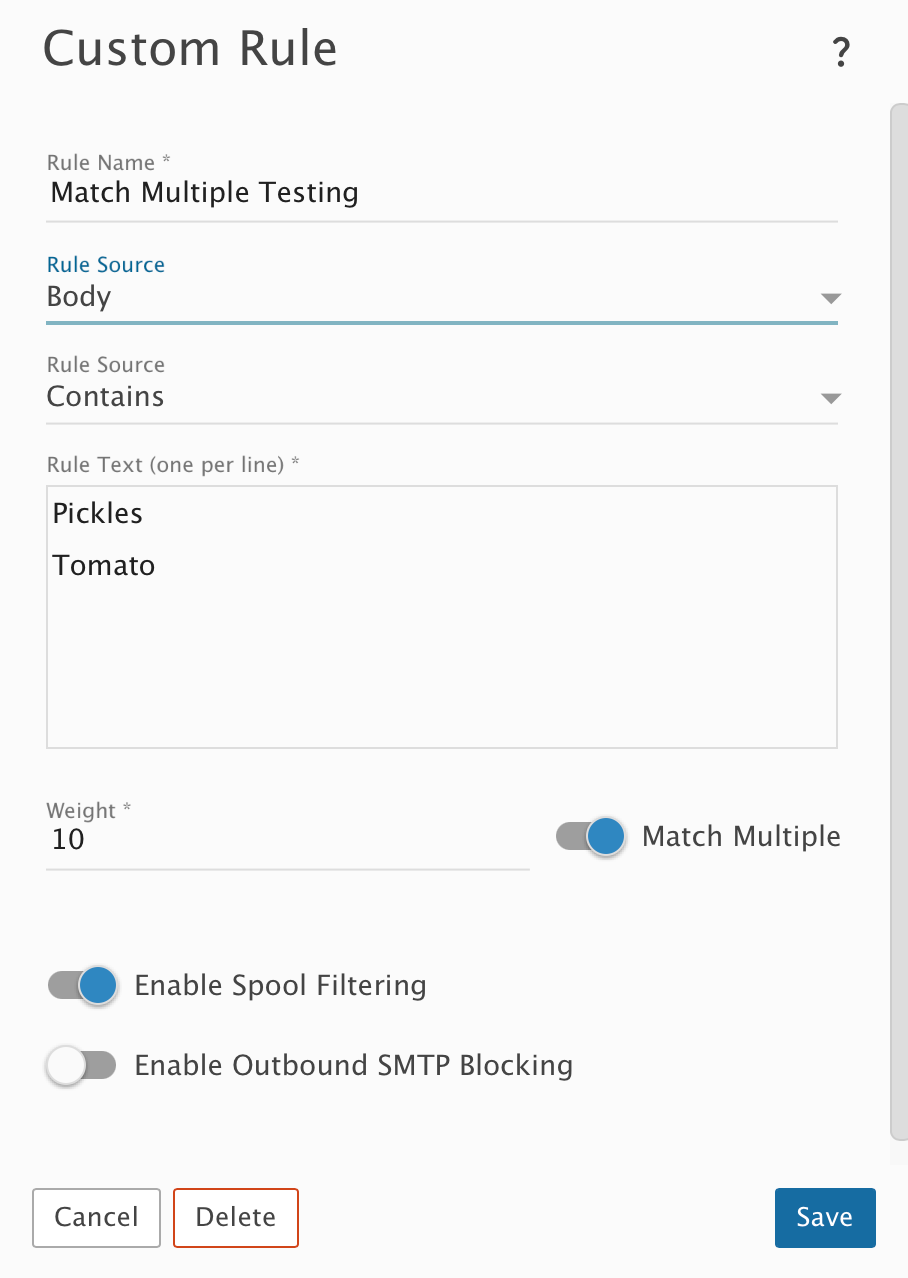
- An incoming HTML + plain text email that contains "Pickles Tomato" in the message body will get a weight of 40 for this spam check. ("Pickles" in the HTML content will trigger a weight of 10, "Pickles" in the plain text content will trigger a weight of 10, "Tomato" in the HTML content will trigger a weight of 10, and "Tomato" in the plain text content will trigger a weight of 10.)
- An incoming HTML + plain text email that contains"Pickles Pickles Tomato Tomato" in the body will get a weight of 40 for this spam check. (Only the first instance of the Rule Text words in the HTML content and plain text content will trigger the weight.)
- An incoming plain text only email that contains "Pickles Tomato" in the body will get a weight of 20 for this spam check. ("Pickles" in the plain text will trigger a weight of 10, and "Tomato" in the plain text will trigger a weight of 10.)