Using OnlyOffice
OnlyOffice is a complete office suite that gives users the ability to view, edit, and collaborate on documents, spreadsheets, and presentation decks. The online version can be integrated with SmarterMail's File Storage area, so SmarterMail users can edit files currently stored in File Storage, or even create new files and have them stored automatically, using their own installation of OnlyOffice.
Creating New OnlyOffice Files
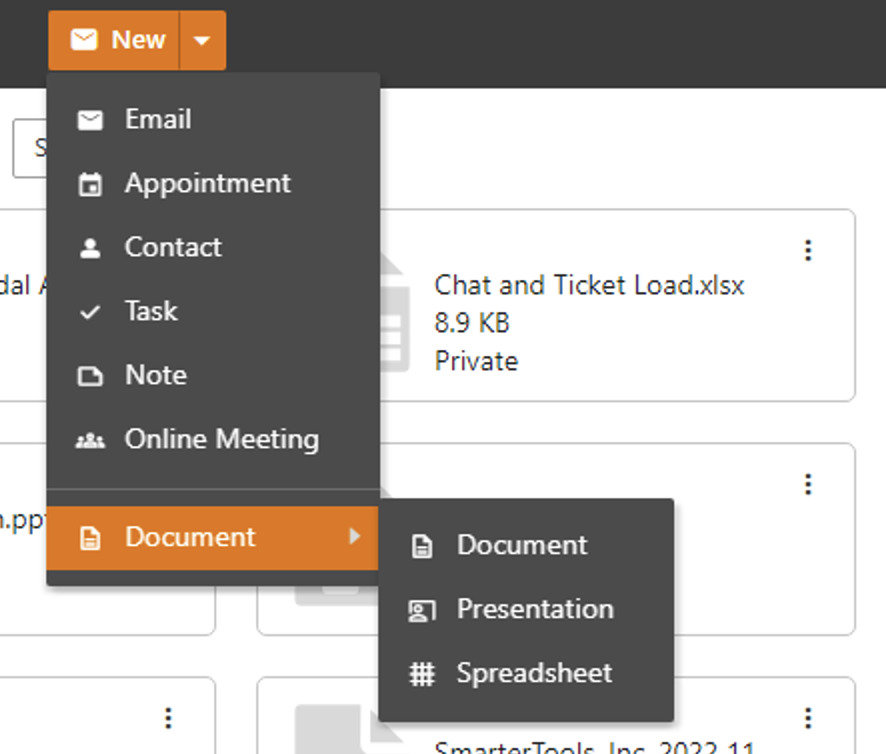
- Creating a new file using OnlyOffice is extremely simple: just use the New button and select the type of file you want to create.
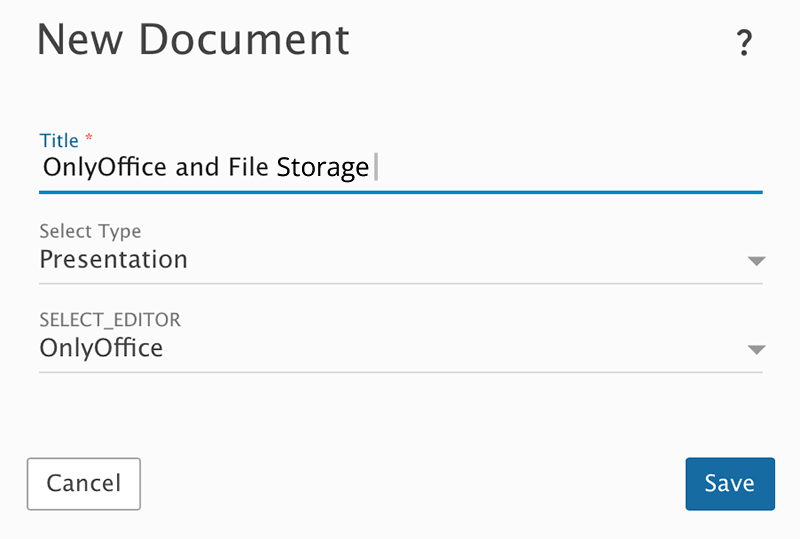
- Once you've made your choice, the New Document modal will open, allowing you to name your file, select (or change) the type of file you want to create, and then select where you want the new file to be stored. Once done, click the Save button and the new file is created.
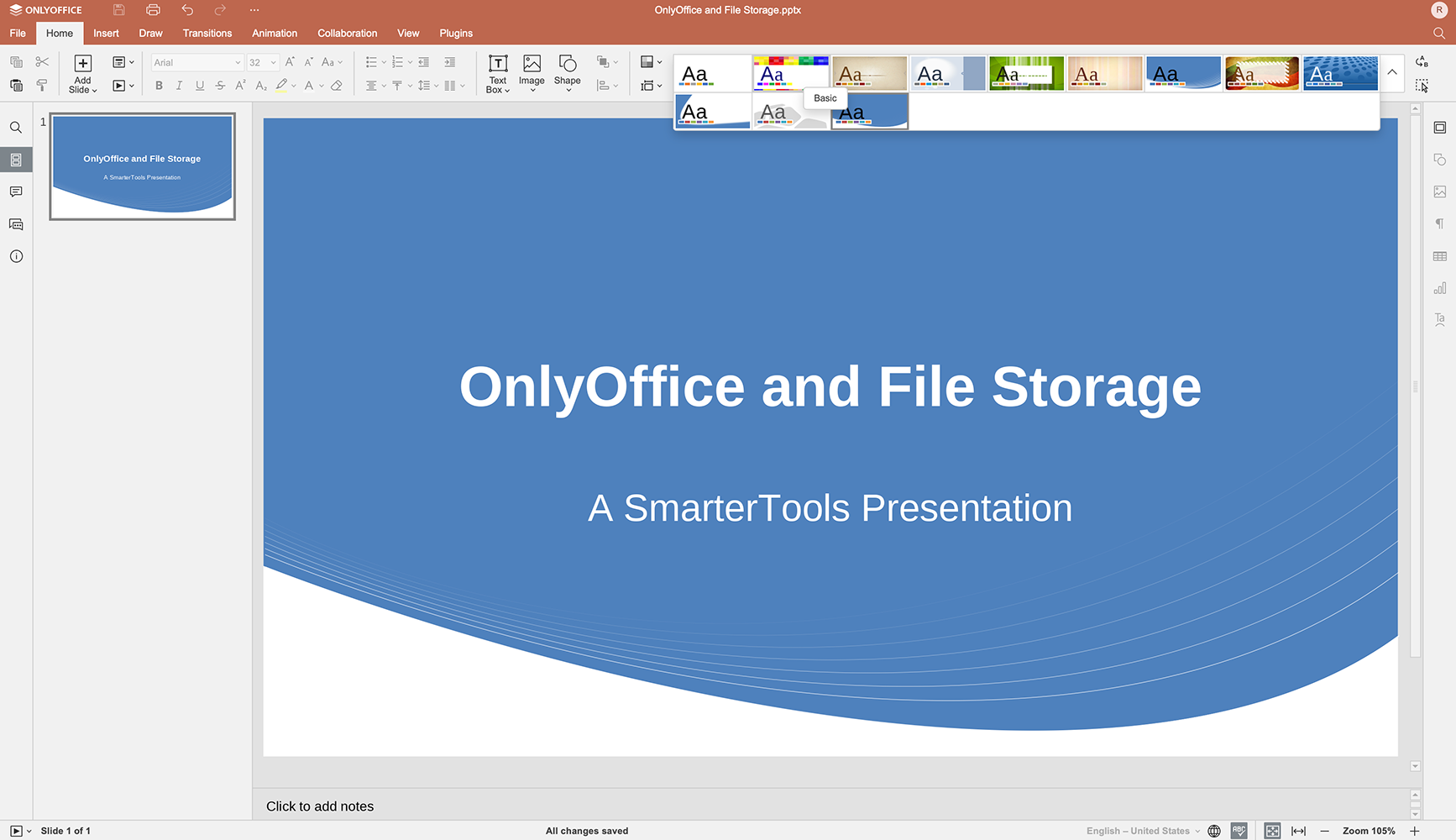
- A new browser tab opens so you can begin editing your new file.
Editing Existing Files
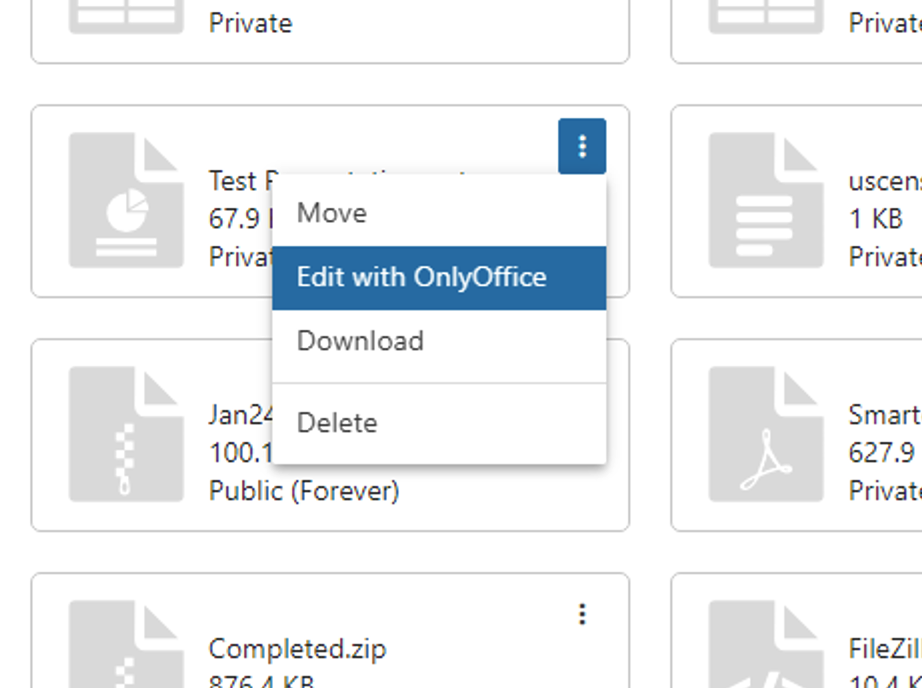
Editing an existing file is just as easy. Simply click the Actions (⋮) button on any text file, document, spreadsheet, or presentation, and select Edit with OnlyOffice from the menu options. The OnlyOffice editor will open in a new browser tab, and you can edit to your heart's content.
Worth Noting
There are a few things worth noting regarding the integration of OnlyOffice:
- Depending on licensing, OnlyOffice sessions may be limited. Your administrator can also limit the number of sessions each user can have open at a time.
- OnlyOffice has an automated save and timeout feature that cannot be controlled by SmarterMail. By default, if a file is open in a tab for more than 60 minutes, without any session activity, it will automatically save and the session will time out.
- If SmarterMail goes down when a file is open, the file will appear in File Storage with a warning icon on it. When you open the file, you're presented with some recovery options. (Recover document and overwrite, rename and recover document, Download, or Delete the recovered copy.)