AI Assistance
Integrating AI, particularly OpenAI's ChatGPT, into SmarterMail's Marketplace enhances the email experience with powerful AI Assistance. SmarterMail's AI Assistance provides intelligent suggestions for composing emails, helping users communicate more effectively while saving time on drafting. This integration streamlines responses and follow-ups, making workflows smoother and boosting overall productivity.
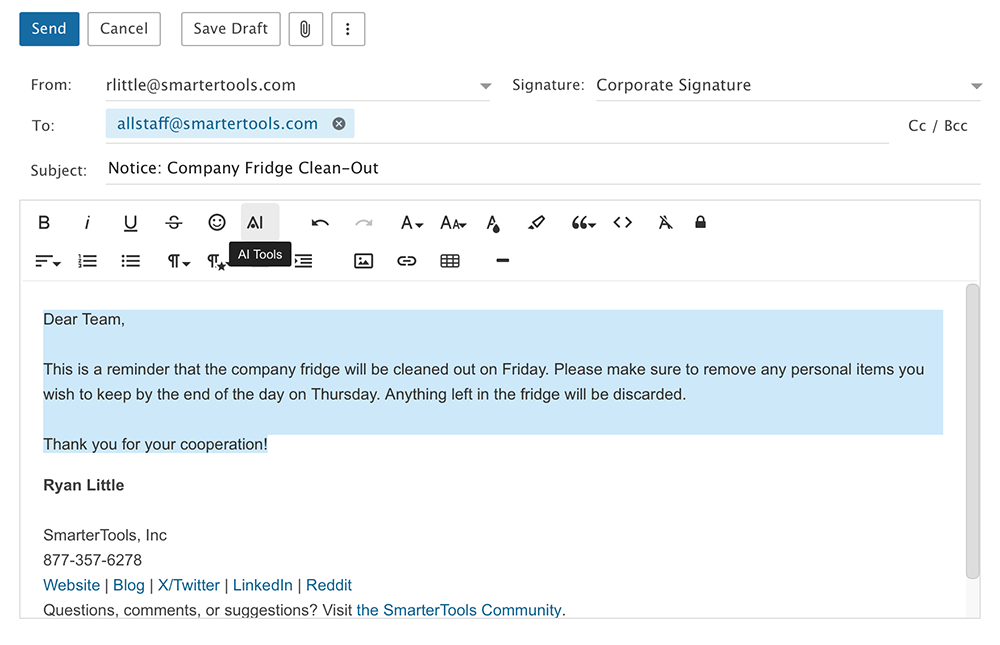
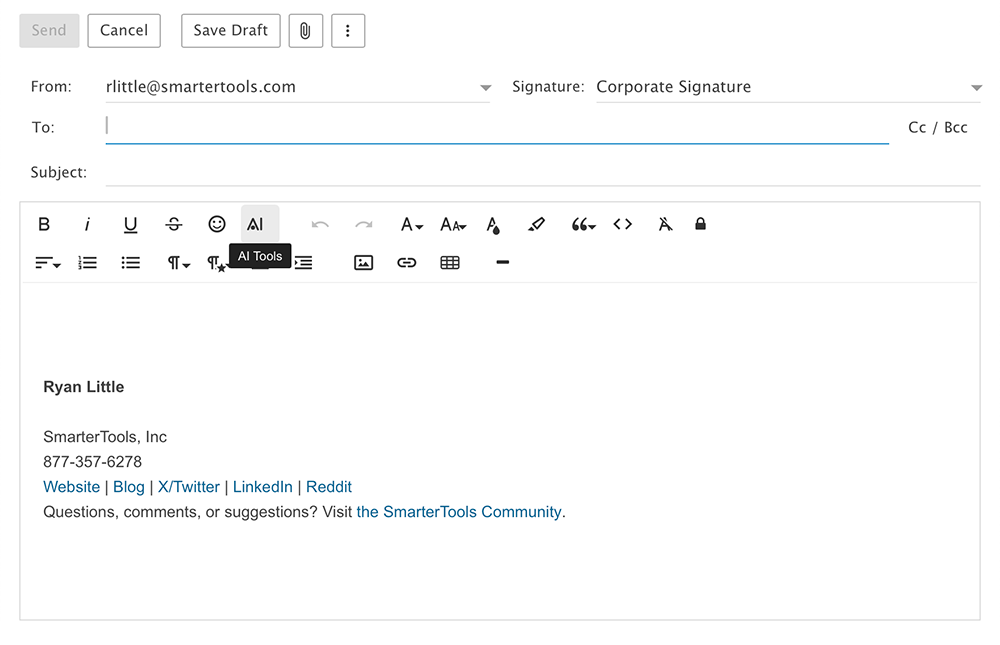
You'll find the AI Assistance icon in the text editor's toolbar wherever rich text is composed — not just when writing an email, but also when editing calendar event descriptions, notes, and tasks. AI Assistance offers five preset commands, each with editable instructions:
- Shorten - Condenses the selected text into a shorter version while maintaining its key information. Great for trimming a rambling draft down to something people will actually read.
- Lengthen - Makes the selected text longer while keeping its context. Useful when a terse reply needs a bit more warmth or explanation.
- Proofread - Reviews and corrects the selected text for grammar, spelling, and punctuation errors.
- Translate - Translates the text into another language while preserving the meaning. The preset instructions include a placeholder where you type the language you want.
- Modify Tone - Rewrites the text to match a tone you specify: casual, formal, professional, etc.
In addition to the preset commands, you can use AI Assistance free-form: open it without selecting any text or a command and simply describe what you want written in the Input Text box.
How the AI Assistance Window Works
Whichever command you use, the AI Assistance window has the same parts:
- Select Command - The dropdown of preset commands listed above. If you open AI Assistance with text selected, Proofread is preselected; if nothing is selected, no command is chosen and you can type a free-form request.
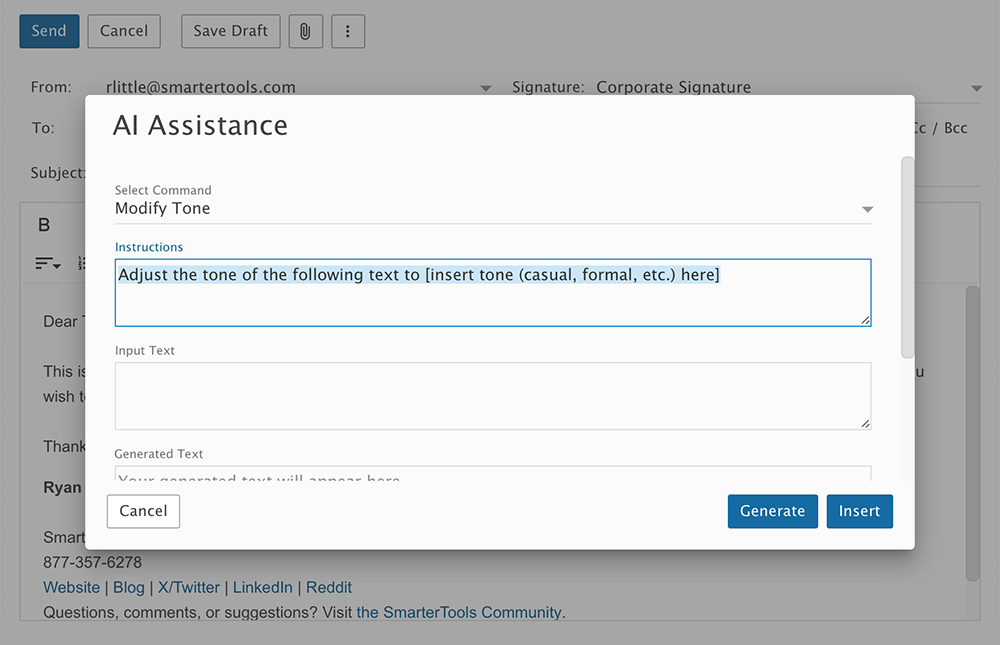
- Instructions - The preset instructions for the chosen command. These are fully editable, and the Translate and Modify Tone presets contain bracketed placeholders (like "[ insert language here ]") for you to fill in.
- Input Text - The text being worked on. Any text you had selected in your message is pre-filled here; with no selection, the body of your message is used.
- Generated Text - The AI's response appears here after you click Generate. You can regenerate as many times as needed, then click Insert to place the result in your message. If you had text selected, Insert replaces that selection; otherwise the generated text is inserted at the top of the message body.
Jump To:
- Creating an Email with AI Assistance
- Proofreading an Email with AI Assistance
- Translating an Email using AI Assistance
- Modifying the Tone of an Email using AI Assistance
Creating an Email with AI Assistance
AI Assistance goes beyond just polishing emails — it can generate a wide range of content to streamline communication. Users can compose full emails, draft event invitations with specific dates, times, and locations, or create informational messages containing key details on a given topic. For example, you can instruct AI Assistance to:
This request provides AI Assistance with clear parameters: the subject, timing, and action, ensuring accurate and efficient message creation. The more specific your request — audience, key facts, desired tone — the closer the first draft will be to what you need.
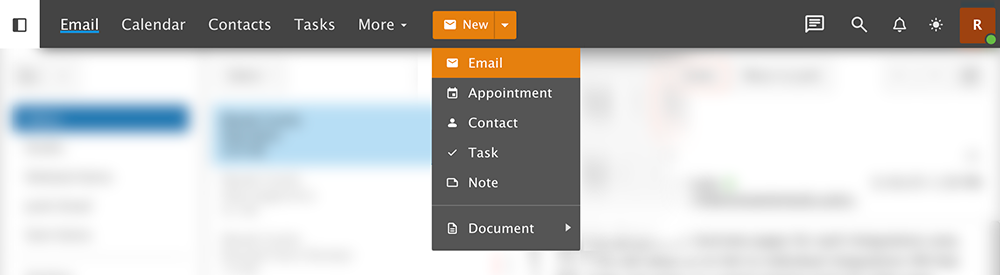
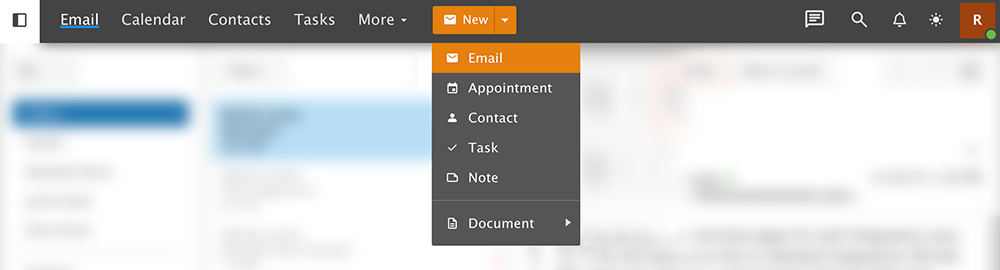
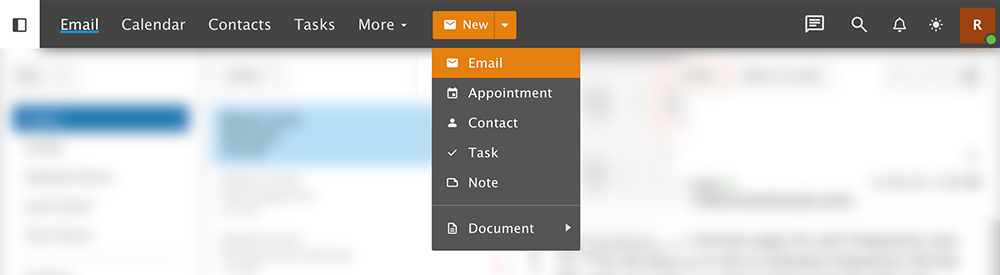
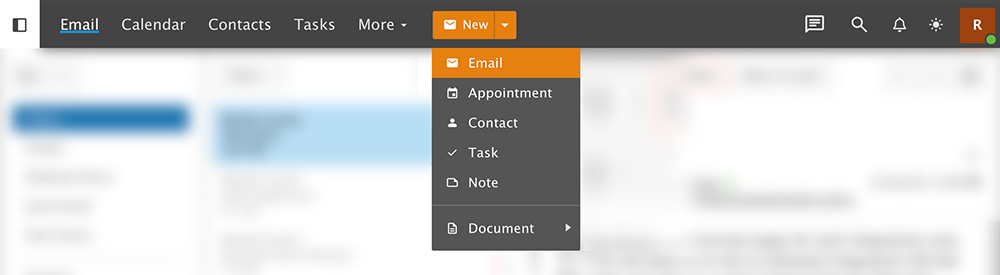
- To get started, in SmarterMail, click on the New button. A dropdown menu will appear; select Email, or simply click New to open a pop-up window. This will launch the email composition window (ensure pop-ups are enabled in your browser). In the editor toolbar, find and click the AI Assistance icon.
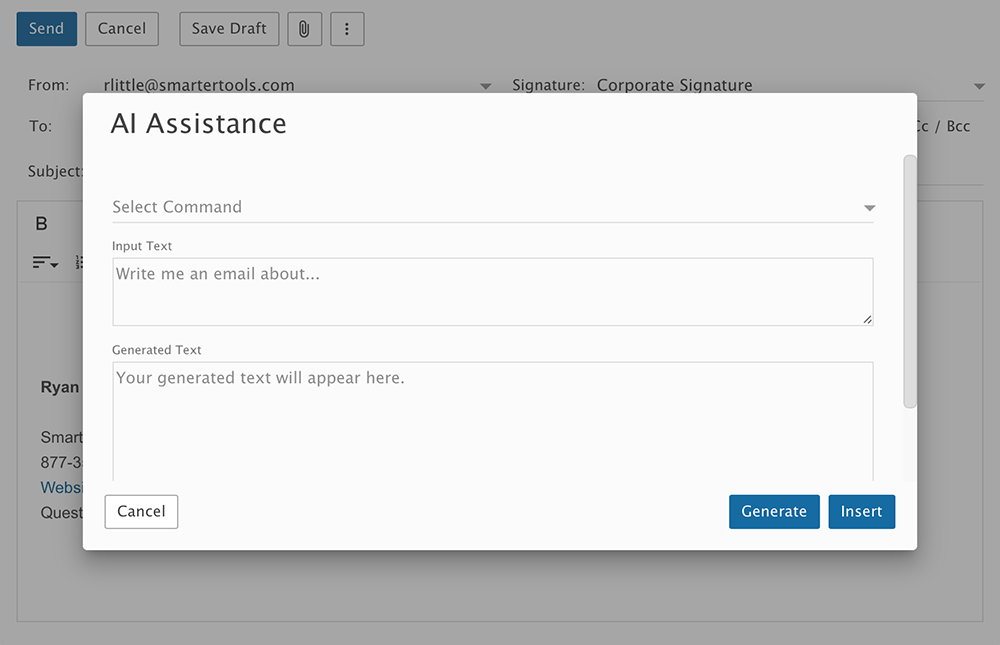
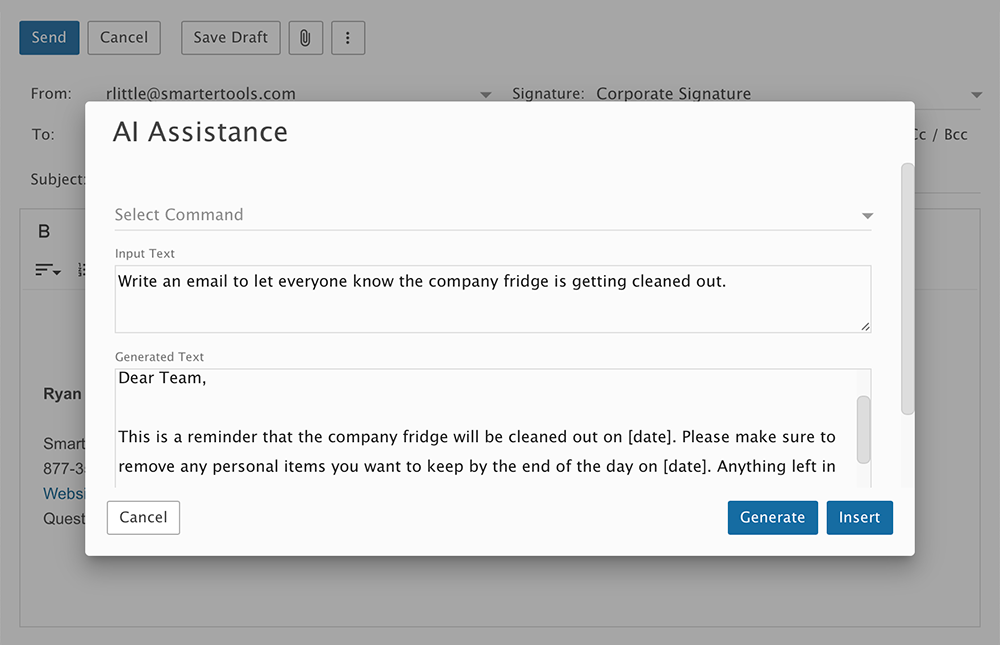
- The AI Assistance modal will pop up. Because you're starting from an empty message with nothing selected, the Select Command field is empty — this is free-form mode, where the Input Text box is where you describe what AI Assistance should generate. You can define any parameters to customize the output. In this example, AI Assistance is instructed to draft an email notifying employees about the company fridge cleanup. Simply provide the subject, content, and desired tone, then click the Generate button. The AI-generated email will appear in the Generated Text box, ready for review and use.
- Review the AI-generated email to see if the content, clarity, and tone all work for you. If anything needs adjusting, just refine your request in the Input Text box above — e.g., "make it friendlier" or "mention that clean-out starts this week" — hit the Generate button, and your updated message will appear in the Generated Text box. Once approved, click the Insert button.
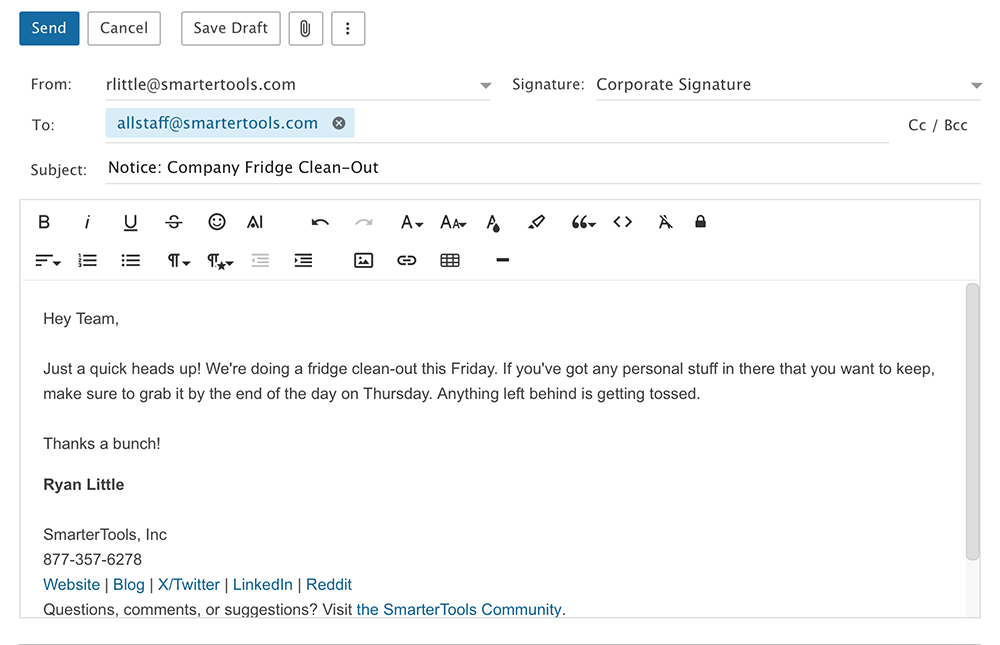
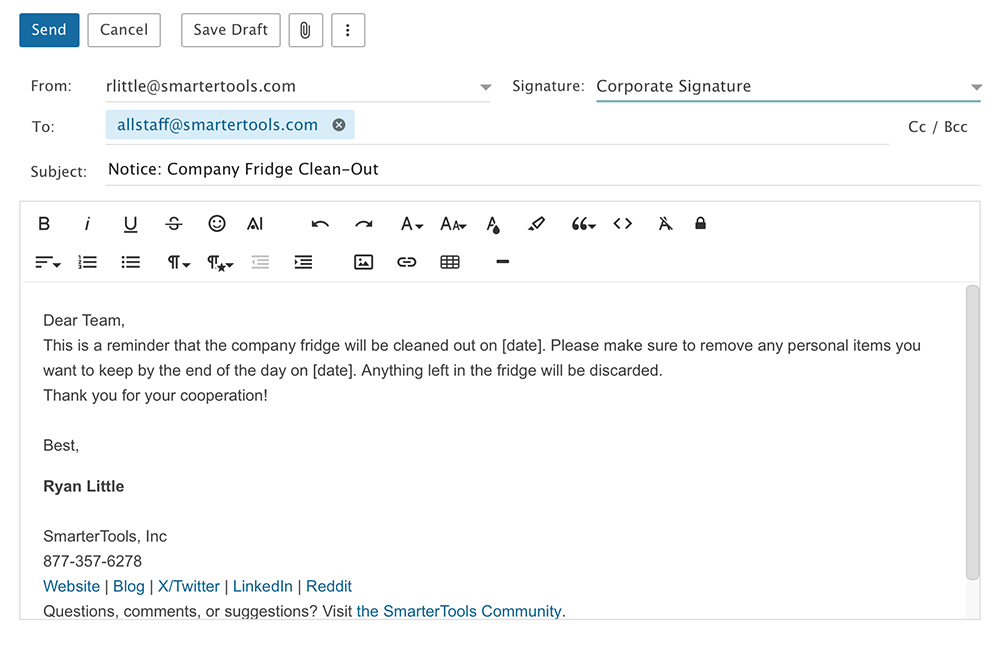
- Your AI-generated message will be displayed within the body of the email. Add a subject line, and if necessary, adjust the formatting, such as font, color, or style to your preference. Once you're satisfied with the appearance of your email, simply click the Send button, and you're all set!
Proofread an Email with AI Assistance
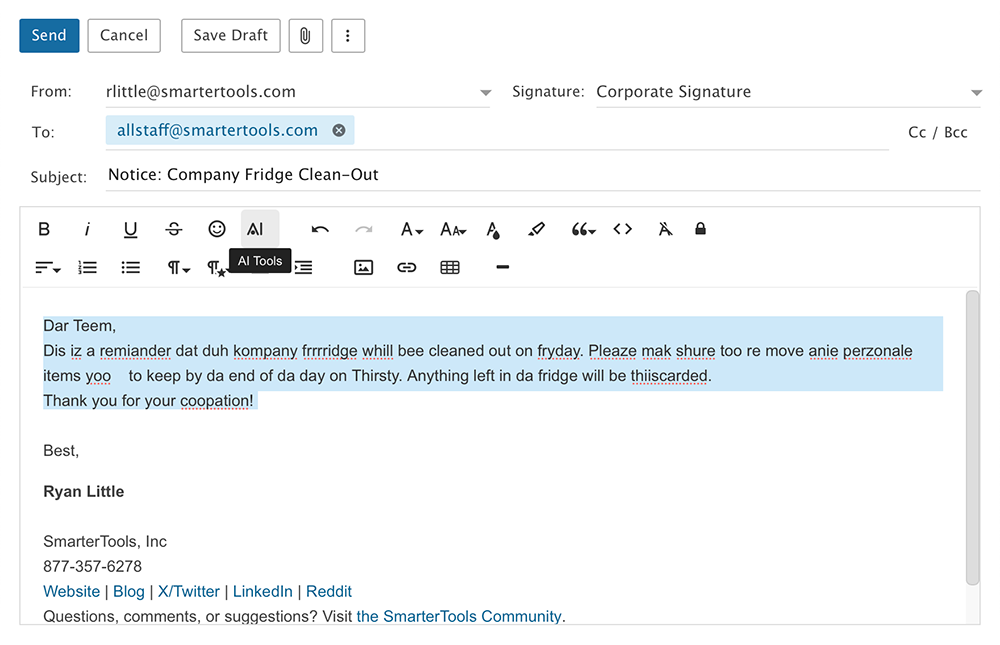
Before hitting Send (especially when emailing an important client) it's always a good idea to double-check your message for clarity and professionalism. That's where SmarterMail's AI Assistance comes in with its Proofread feature. Simply highlight your text, click the AI Assistance icon, and let AI Assistance do the heavy lifting. It'll check for grammar, spelling, and readability to make your message clearer and more polished, helping you communicate with confidence every time.
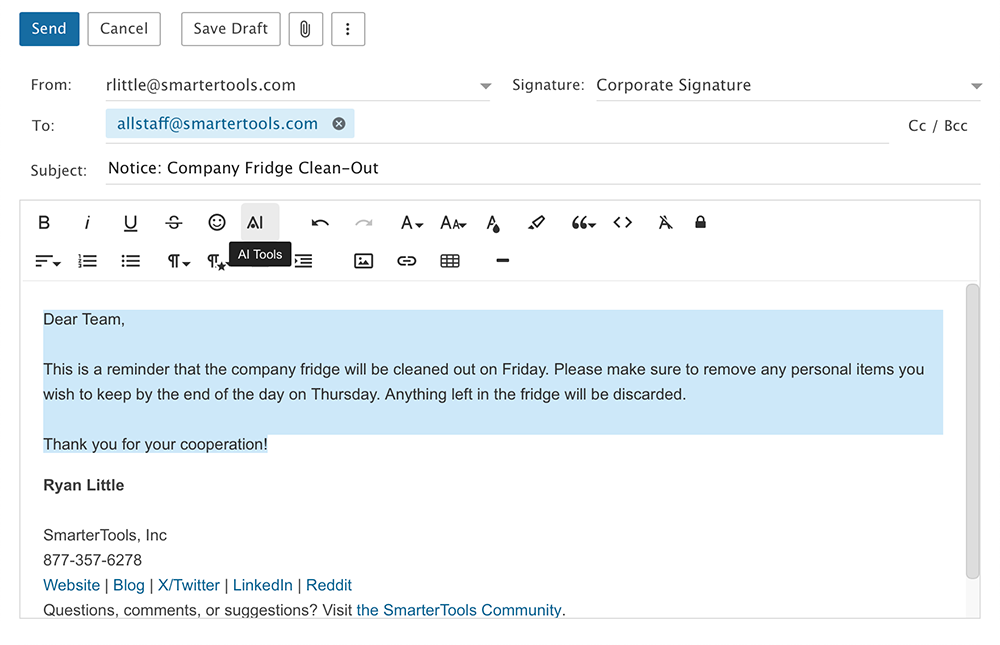
- Compose your message as you normally would, then highlight the text you want checked and click the AI Assistance icon in the editor toolbar.
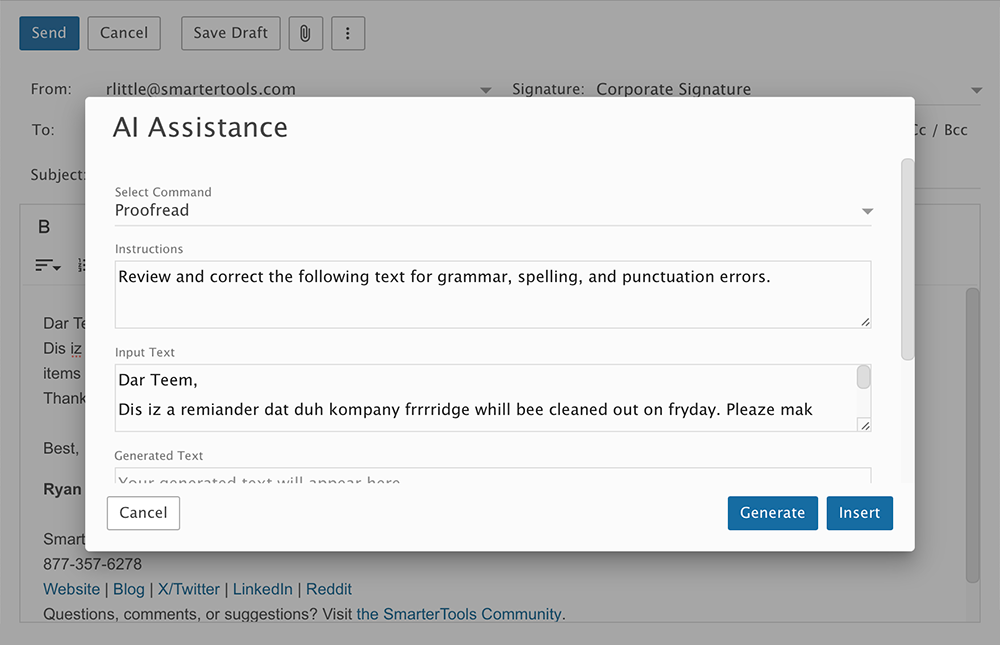
- The AI Assistance modal will pop up. Because text was selected, the Proofread command is already selected and your highlighted text fills the Input Text box. The Instructions box contains the pre-set command: "Review and correct the following text for grammar, spelling, and punctuation errors." Click Generate to apply the necessary corrections.
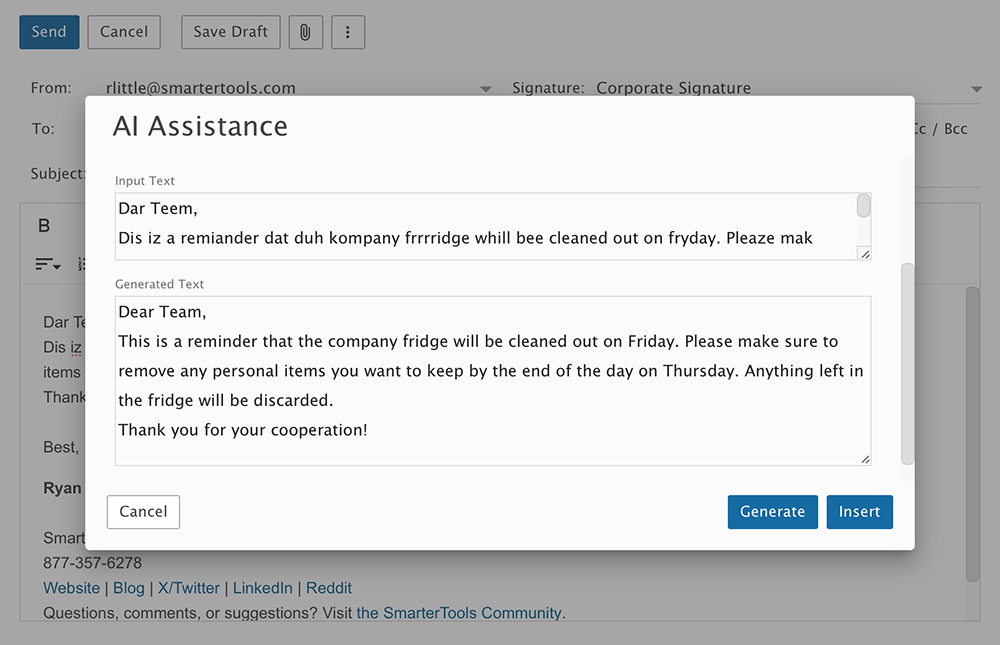
- Review the AI-generated response to see if the content, clarity, and tone all work for you. If anything needs adjusting, just type your changes in the Input Text box above, hit the Generate button, and your proofread message will appear in the Generated Text box. Once approved, click the Insert button and the corrected text replaces what you had highlighted.
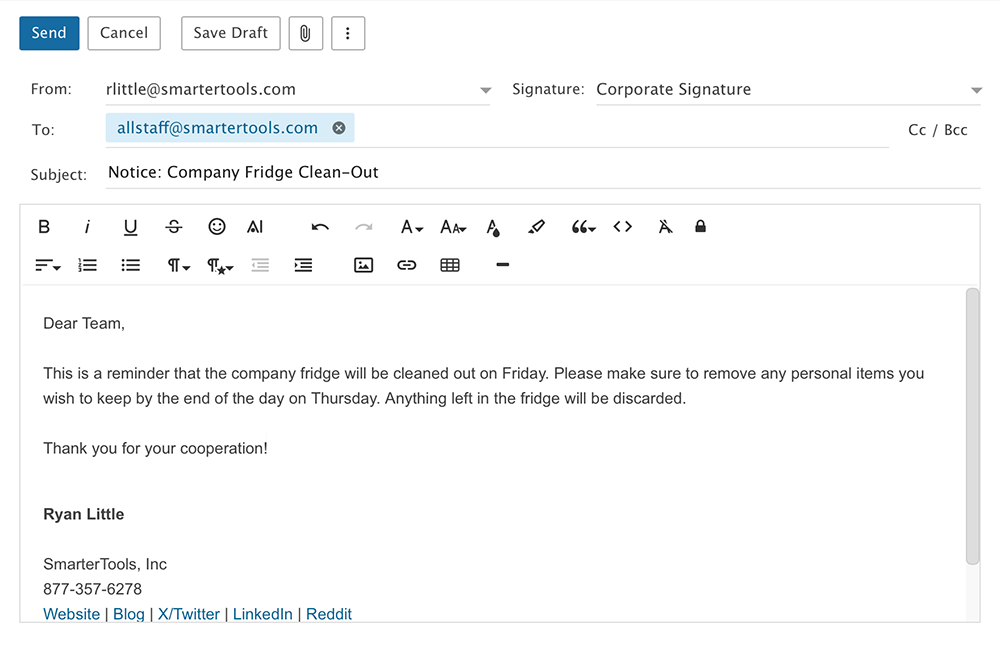
- Your proofread message will be displayed within the body of the email. If necessary, adjust the formatting, such as font, color, or style to your preference. Once you're satisfied with the appearance of your email, click the Send button, and you're all set!
Translate an Email with AI Assistance
In today's global business world, clear communication across languages is more important than ever. SmarterMail's AI Assistance makes this easy with its Translate feature, allowing users to quickly and accurately translate emails into other languages. For example, we asked AI Assistance to:
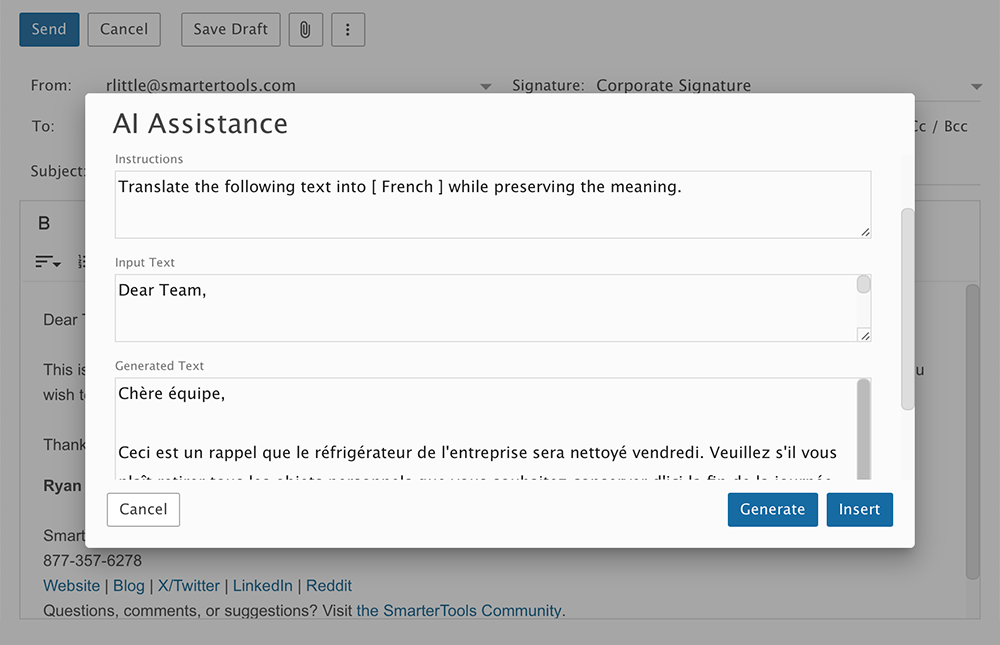
Since this organization is based in France, we need to translate the message into French. The first draft was written in English, so we use AI Assistance's Translate feature to seamlessly convert the message into French while maintaining clarity and tone. Simply select your text, choose Translate, and let AI Assistance handle the rest.
- With your drafted message open, highlight the text to translate and click the AI Assistance icon in the editor toolbar.
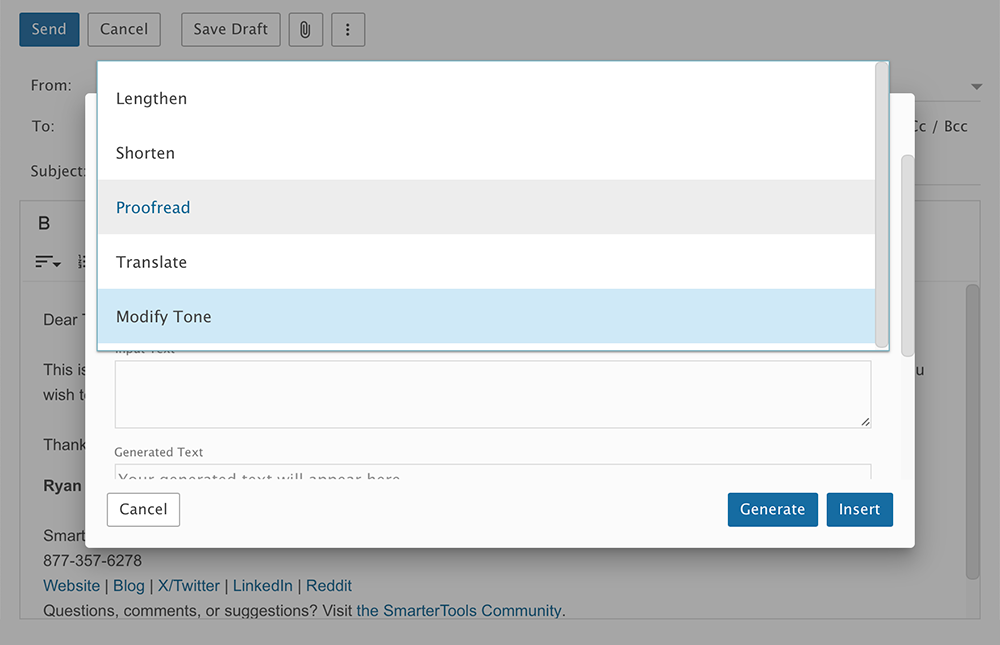
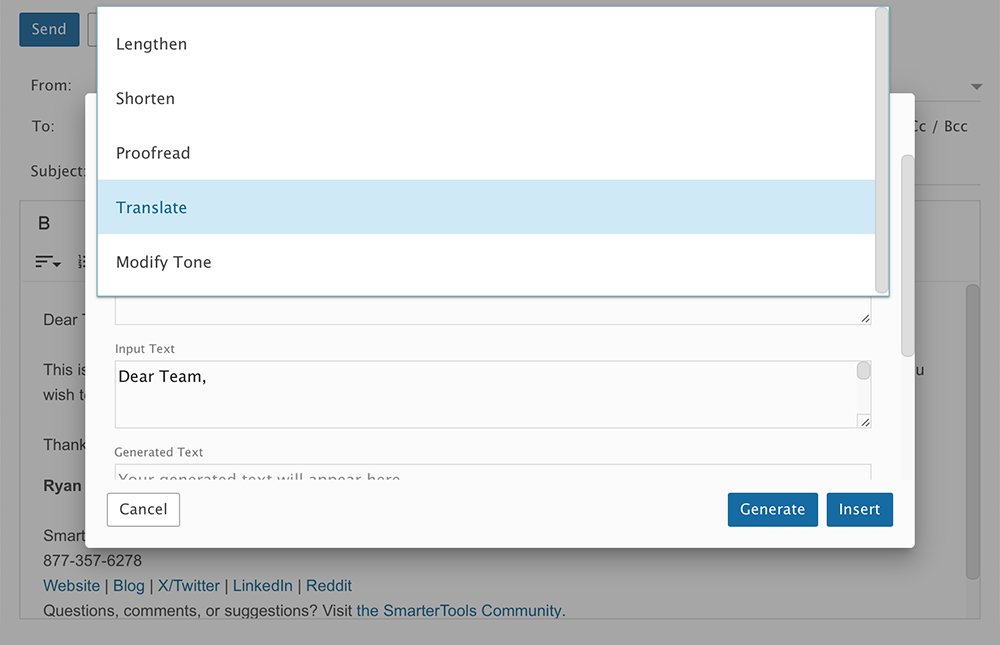
- The AI Assistance modal will pop up with the Proofread option already selected. Click the Select Command dropdown to display your command options — in this case, select Translate.
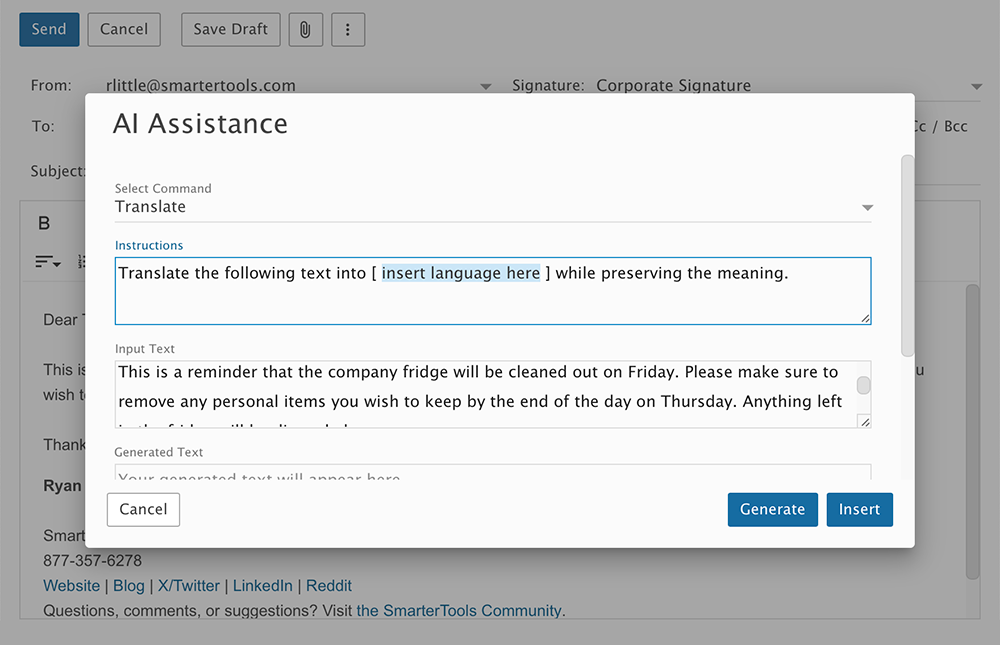
- The Instructions box will contain the pre-set command: "Translate the following text into [ insert language here ] while preserving the meaning." Replace the bracketed placeholder with your desired language. For this example, we typed in French. Then click Generate for AI Assistance to translate your message.
- Review the AI-translated email. Once approved, click the Insert button.
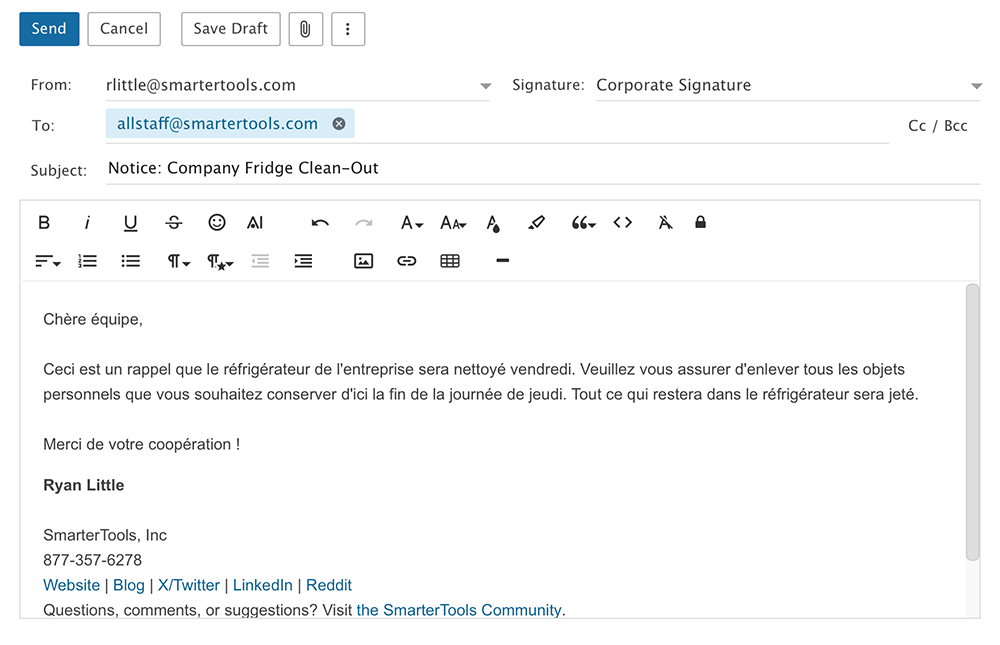
- Your translated message will be displayed within the body of the email. If necessary, adjust the formatting, such as font, color, or style to your preference. Once you're satisfied with the appearance of your email, simply click the Send button, and you're all set!
Modify the Tone of an Email with AI Assistance
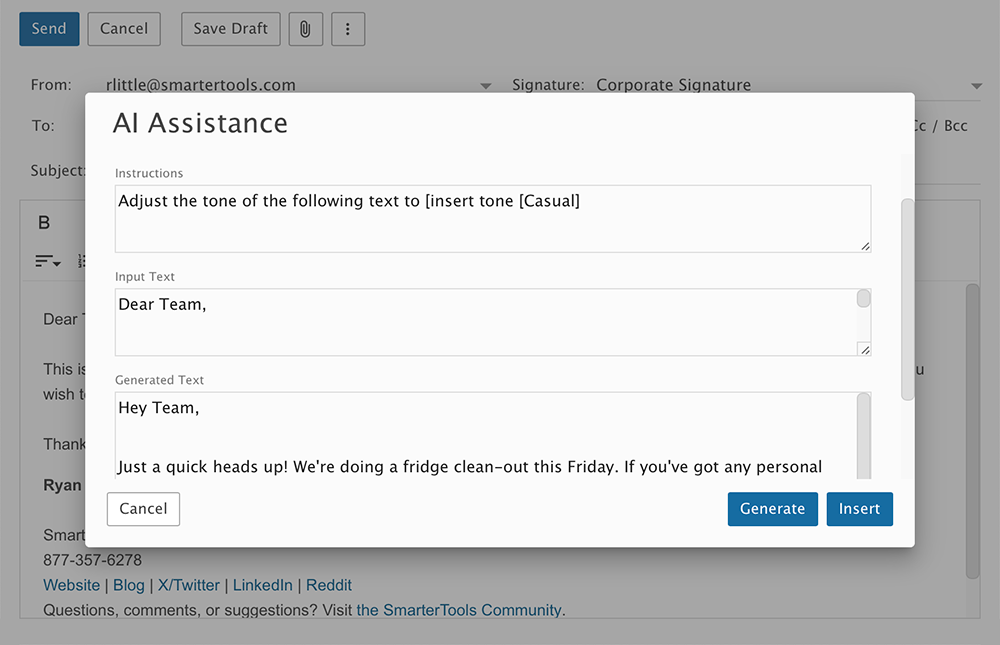
Tone is everything in communication, but in the digital world, it can easily get lost — after all, we're reading words, not hearing them. SmarterMail's AI Assistance makes it easy to fine-tune your message by rewriting it in a specific tone: professional, casual, formal, or something in between, helping you ensure your message comes across exactly as you intend. For example, we asked AI Assistance to:
The first draft comes off a bit serious, so we use AI Assistance to adjust the tone to something more casual. The result was a message that feels more friendly and approachable while still getting the point across.
- With your drafted message open, highlight the text to rewrite and click the AI Assistance icon in the editor toolbar.
- The AI Assistance modal will pop up with the Proofread option already selected. In the Select Command dropdown, navigate down to Modify Tone.
- The Instructions box will contain the pre-set command: "Adjust the tone of the following text to [insert tone (casual, formal, etc.) here]". Replace the bracketed placeholder with the tone you want — for this example, we typed in Casual Tone. Click Generate for AI Assistance to rewrite your message.
- Review the AI-generated message to see if the content, clarity, and tone all work for you. If something needs adjusting, just type your changes in the Input Text box above, hit the Generate button, and your updated message will appear in the Generated Text box. Once approved, click the Insert button.
- Your AI-generated message will be displayed within the body of the email. If necessary, adjust the formatting, such as font, color, or style to your preference. Once you're satisfied with the appearance of your email, simply click the Send button, and you're all set!