News Feeds Overview
Real Simple Syndication (RSS) is a way for website owners to make their content available for people to read at their leisure using a centralized application, or Feed Reader. Websites publish lists of updated content via "feeds" that indicate when a new article, blog post or community thread is available. So, rather than regularly visiting a website, you can add a new feed to SmarterMail (also called subscribing to a feed) and then see when new content is available from that site. Any new content posted to your feeds will appear in the News Feeds section of your SmarterMail account, so you don't have to do a ton of clicking around or have multiple browser tabs open.
Using RSS makes it easy to stay up-to-date on information from news sites, blogs, social media outlets, Google alerts, new forum topics and much more, right from within SmarterMail.
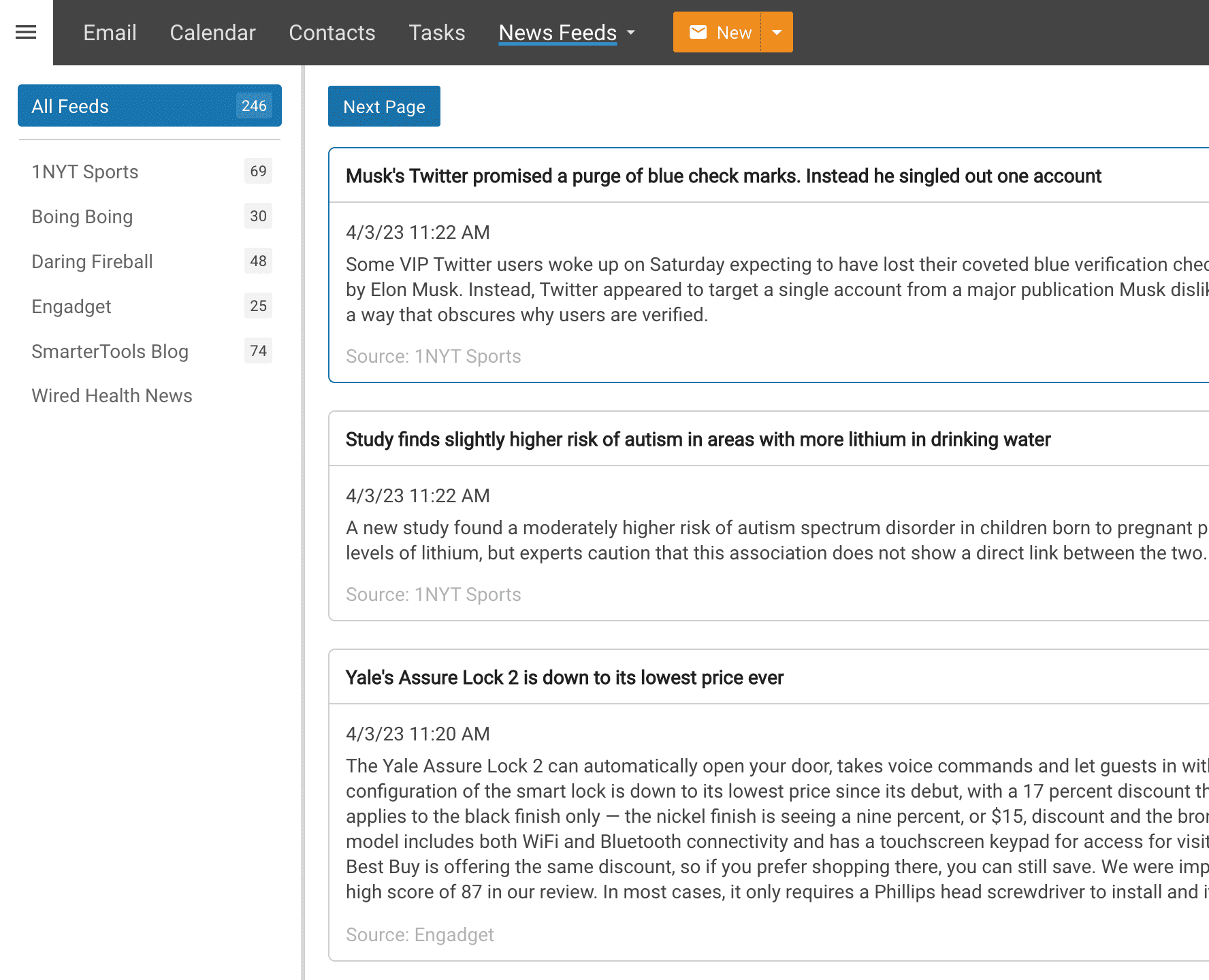
Navigating Your News Feeds
News Feed Layout
When you view your news feeds, the page is divided into two sections:
- The News Feeds View displays all of the feeds you have added to SmarterMail. Any recent or unread updates to a specific feed are shown with a number to the end of the feed's name. To view the feeds, simply click the desired feed's name.
- The content view displays a list of the articles, with a brief synopsis, in the RSS feed you are viewing. Simply click on the article to open it up in a new browser tab at the original source.
Adding a New News Feed
Adding a new feed is simple. However, you'll need to grab the proper feed URL from the site you want to add. Generally, a website will have an RSS feed listed somewhere on their website. Additionally, you can do a search for "Website A's RSS feed" in your favorite search engine and that site's feed URL should be one of the results. If you're unsure where to start, you can do a search for "best RSS feeds for news" or "best RSS feeds for tech reviews" and the results will be many.
Generally, an RSS feed URL looks something like "https://www.wired.com/category/gear/feed" or even "http://feeds.reuters.com/reuters/healthNews". On most sites, they're designated with an RSS feed icon.
If you were to click on an RSS link in your browser, you'll see the raw feed page, which is probably a XML page. Therefore, it will look like a bunch of oddly grouped blocks of text surrounded by XML tags. Fear not: the News Feed reader in SmarterMail can make perfect sense of what you're seeing.
Once you have a feed URL, it's time to add the feed to your News Reader. Click the Folder icon at the top of the feeds list and select Add Feed from the dropdown — the same menu also has New Folder if you want to organize your feeds into groups first. In the modal that opens, enter the feed's Name, its URL, and choose which folder to file it under (it defaults to the root folder if you don't have any custom ones set up). Once you save, that feed shows up in your feeds view and, as soon as SmarterMail grabs its articles, a number appears next to the feed's name telling you how many unread items it has. Repeat this for any other feed you want to add.
To edit or delete a feed later — for example, to rename it or change its URL — select it, then use that same Folder-icon dropdown, which now also offers Edit Feed and Delete Feed. Right-clicking a feed in the list gives you the same options, plus a quick way to mark all of its items as read or unread.
If you don't want to wait for SmarterMail's normal update cycle, you can manually pull in new articles right away: use the Actions (⋮) menu next to the Folder icon and select Refresh.
Managing RSS Folders
To make your RSS feeds easy to manage, SmarterMail lets users create as many RSS folders as they want. RSS folders help users organize feeds in ways that make sense to the individual user.
To create a new folder, use the Folder-icon dropdown, and select New Folder. This will open a new folder window. In the Parent field, select the appropriate directory to save the folder to. Use "- Root Folder -" to create a "parent" folder that can contain sub-folders within it. For example, a "News" root folder could contains subfolders for "Technology" for tech news, "Politics" for political news, etc. In the Name field, type the name of the new folder. Folder names can include letters, numbers, and the hyphen (-), space ( ), and underline (_) characters only. Note: Using a backslash character (\)when naming a new folder will create a sub-folder. For example: Technology\Software. Then click Save.
Renaming and Deleting Folders
You can change the name of an RSS folder anytime or delete it completely when you no longer need it.
To rename a folder, select the appropriate folder in the navigation pane. Right click on it to open its context menu and select Edit Folder. In the Name field, type the new name. You can also change the directory that the folder is saved to by selecting another directory in the Parent field. Then click Save.
To delete a folder, select the appropriate folder in the navigation pane. Right click on it to open its context menu and select Delete Folder. Then click OK to delete the folder and all of its contents.